Get started / Companion
Example project with the Companion
See, in a chat with the agent, how to connect your phone, authorize the pairing and create the first example screen with the Companion on the PC.
- 1
You
Connect to MCP Display at this address:
http://phone_ip:7777/mcpWhere it says phone_ip, put the IP of your own phone on the local network.
- 2
Agent
Connected. For pairing, the agent will generate a code. Type that code on your phone to confirm.
The pairing code is generated by the agent and typed on the phone; this site shows no real code.
- 3
You
Done. Authorize the connection on your phone and come back here so I can finish the setup.
- 4
Agent
Paired! Do you want me to create the first example screen, with clock, weather and media?
- 5
Agent
Screen created. The screenshots below show example setups with the Companion, customizable by me.
Real app screenshots
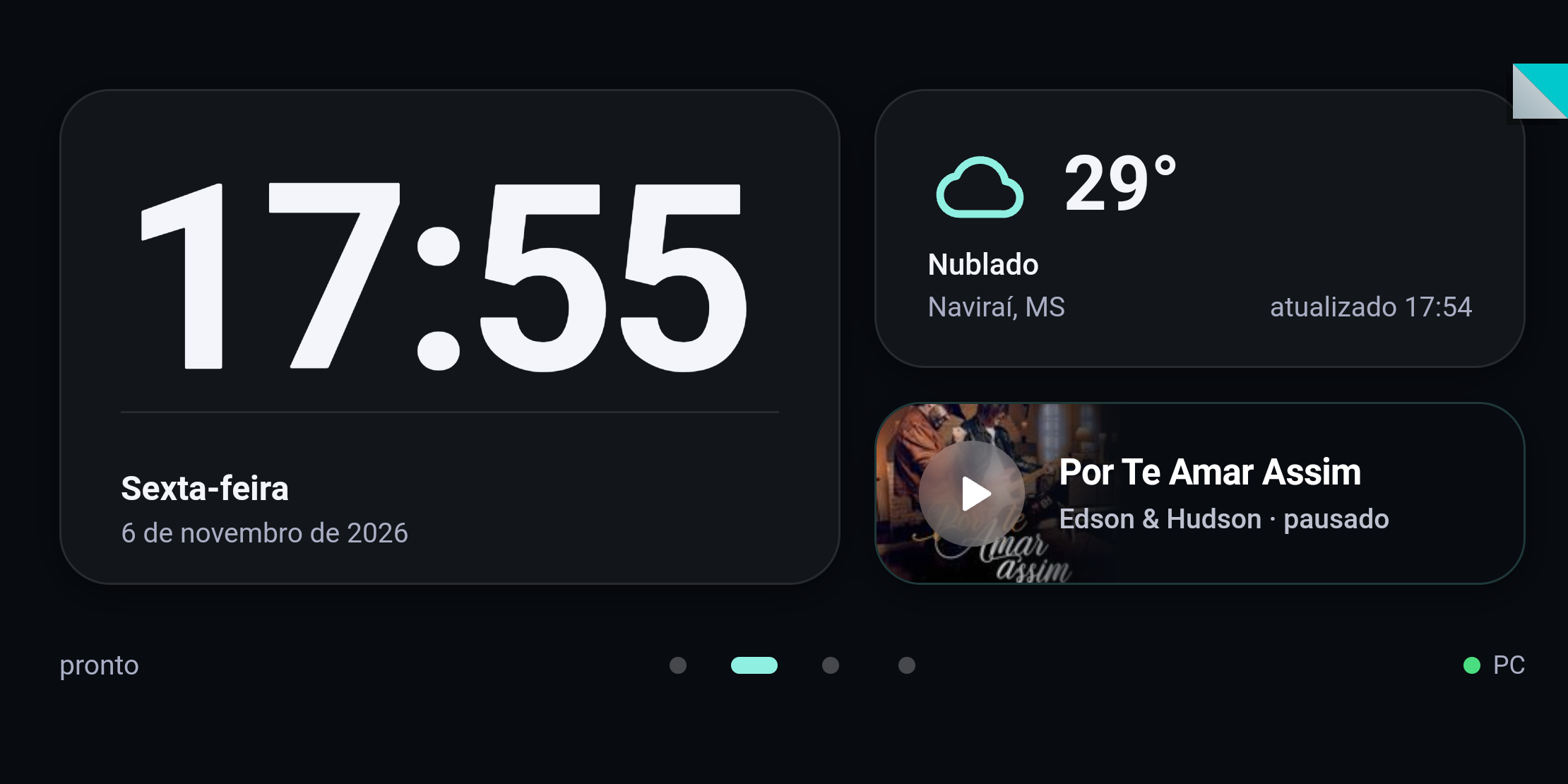
Clock, weather and media: an example setup with the Companion, customizable by the agent. 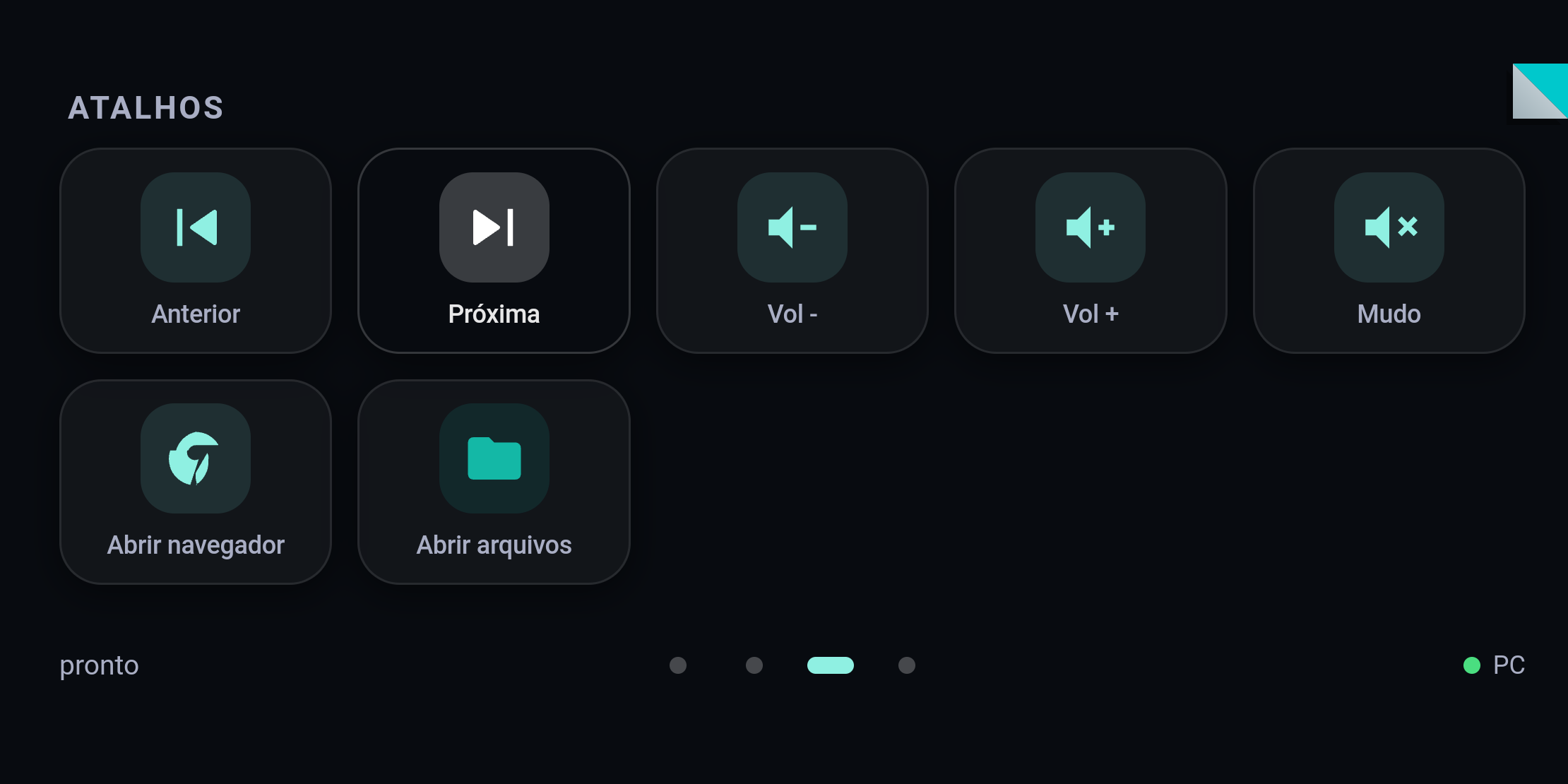
PC shortcuts: an example setup with the Companion, customizable by the agent. 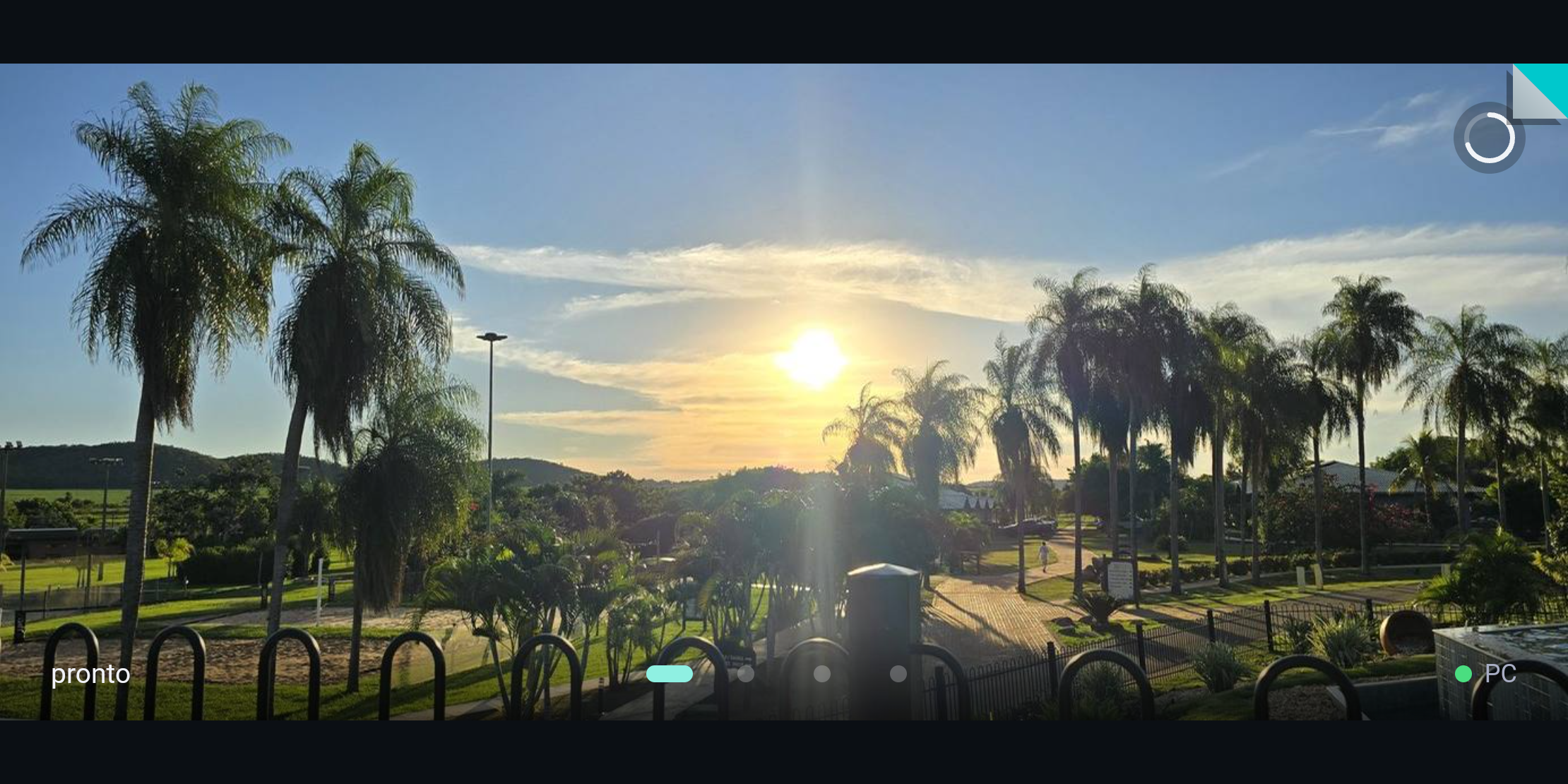
Photos: an example setup with the Companion, customizable by the agent. 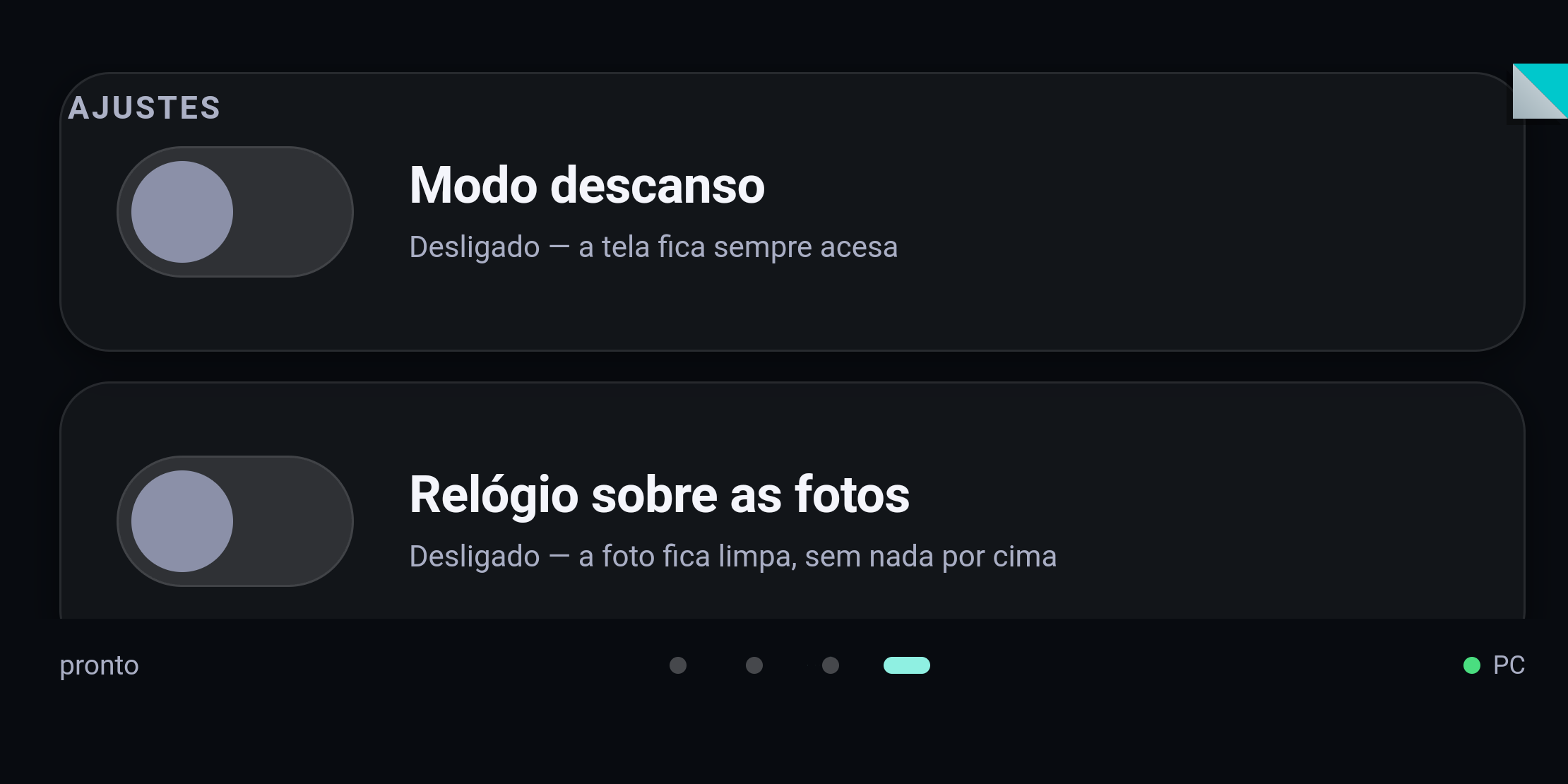
Settings: Rest mode and Clock over photos, an example setup with the Companion, customizable by the agent.
- 6
You
You can change that screen however you like and create, together with your agent, any screen you imagine.
Companion
First use of the Companion
Install the Companion on your PC from the official repository, read the Portuguese guide and keep it running. To install it as a system service, confirm the authorization when the program asks.
- 1
Download and install the Companion on your computer from the official repository.
- 2
Follow the Portuguese guide to set up the shortcuts.
- 3
Keep the Companion running and connect the agent to the phone.
Now it is up to you
Change the example screen and create any screen you want together with your agent.