Clock and date
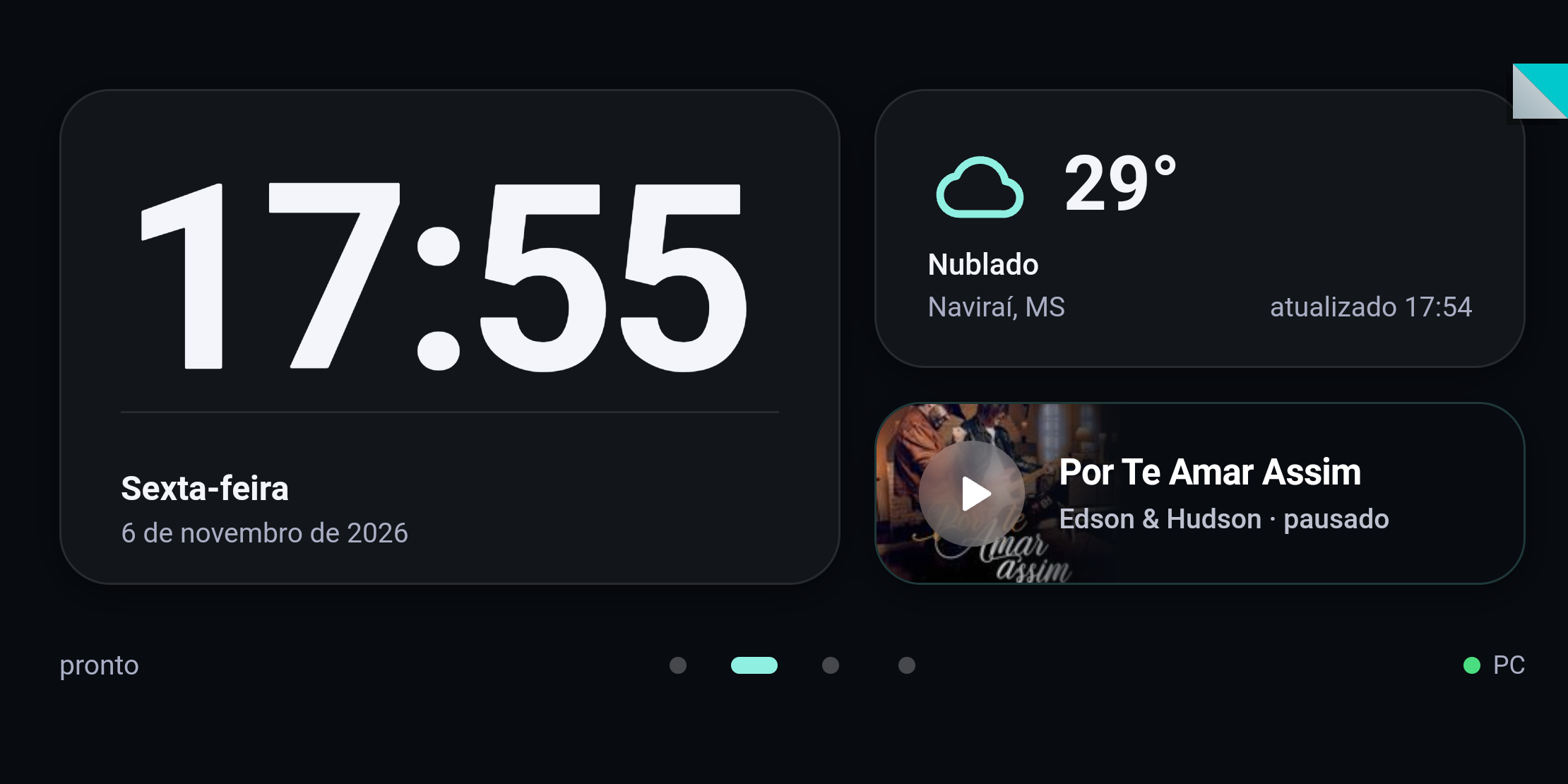
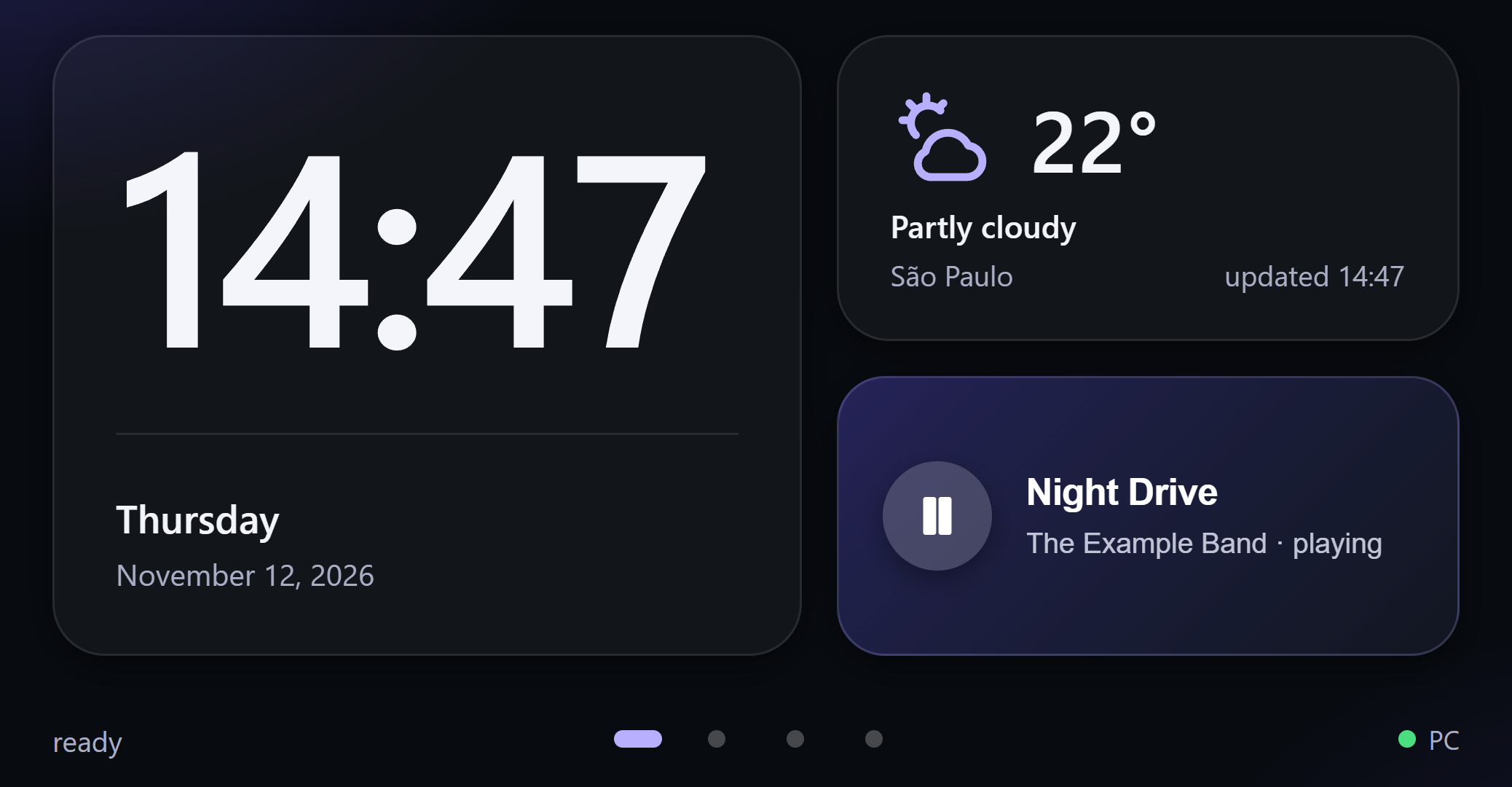
Large time, weekday and date, always visible on the phone screen.
Introduction
Connect the AI agent you already use to MCP Display and ask it for the interfaces you need. The agent is yours; the app has no AI built in. It only shows on your phone what the agent creates.
Demo
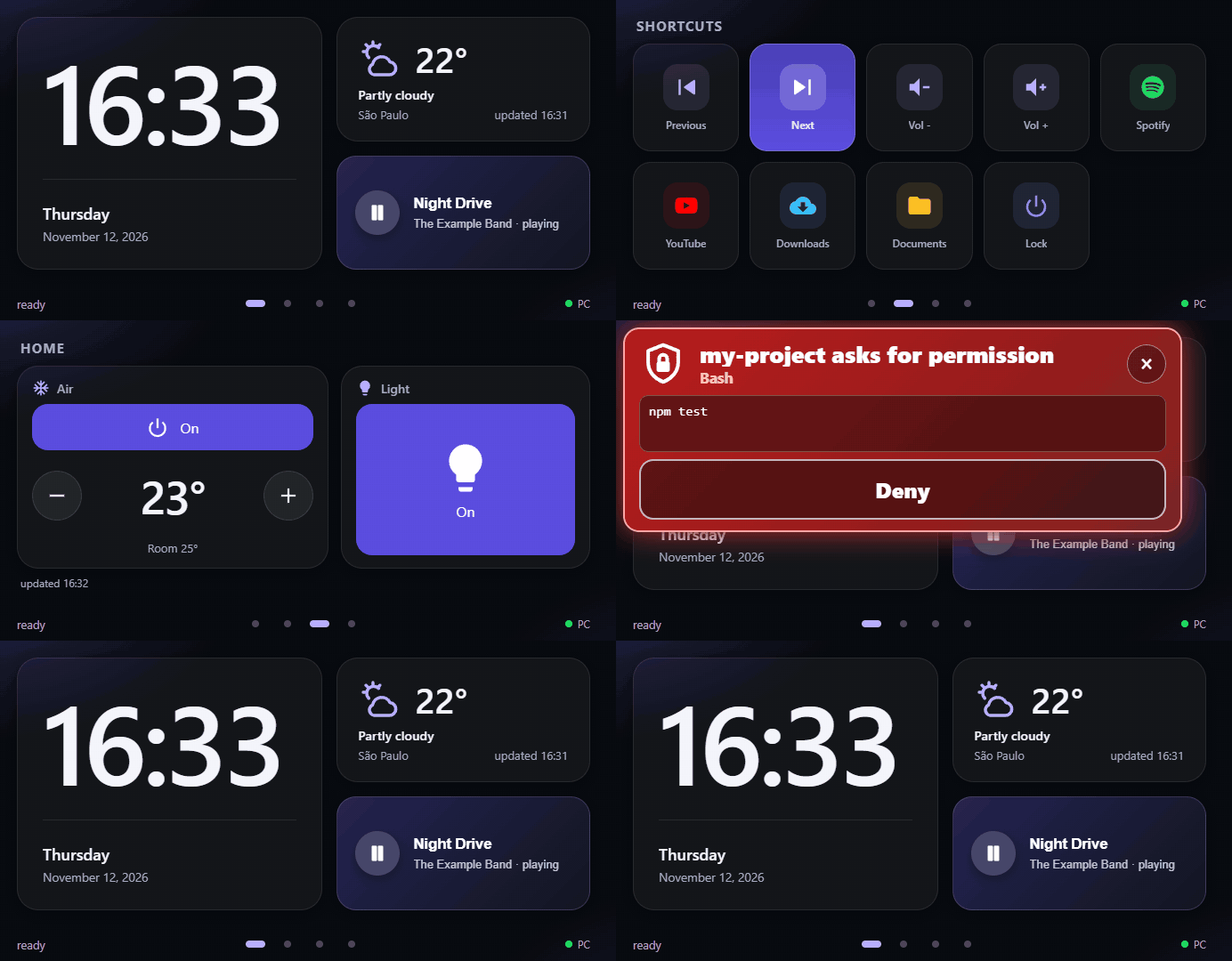
Each capture shows an example setup with the Companion, customizable by the agent. The images are static.
Clock, weather and media: an example setup with the Companion, customizable by the agent.
Use the arrows or swipe to see the other screenshots.
Examples
Large time, weekday and date, always visible on the phone screen.
Temperature, condition and city, when the agent has access to that data.
Track playing, cover and play, pause and track-change controls.
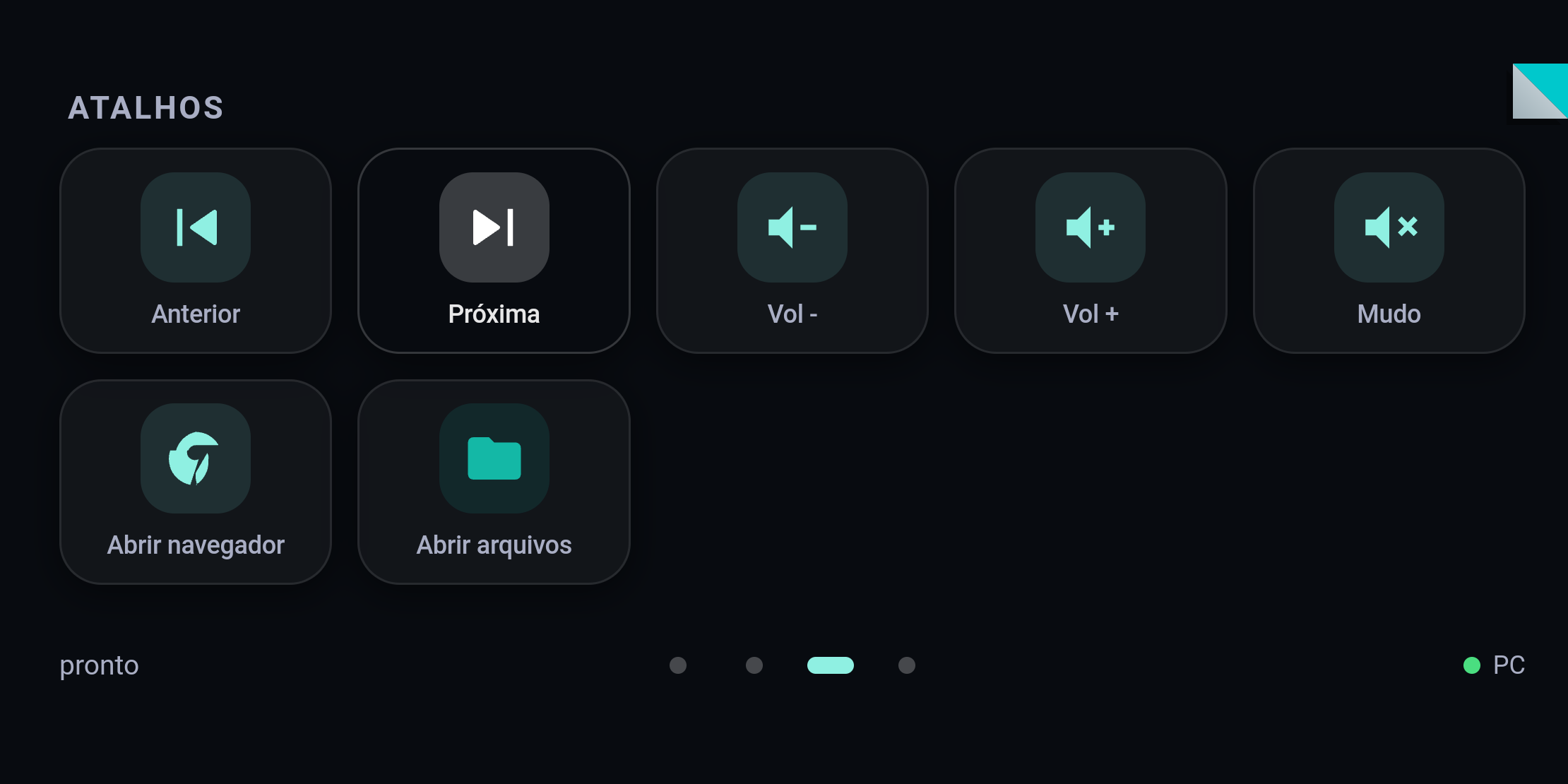
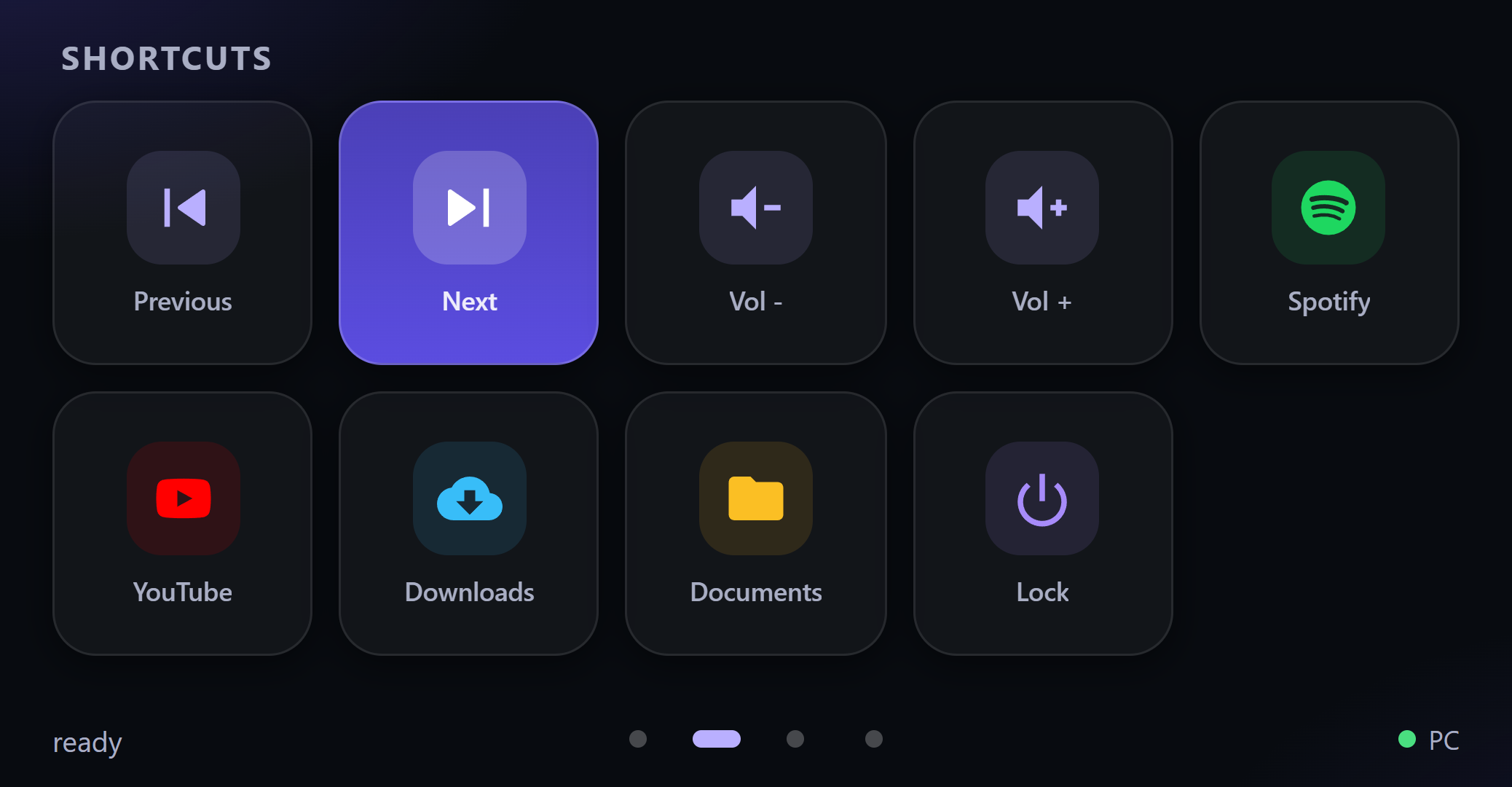
Buttons for volume, mute, browser and folders, run by the Companion on the computer.
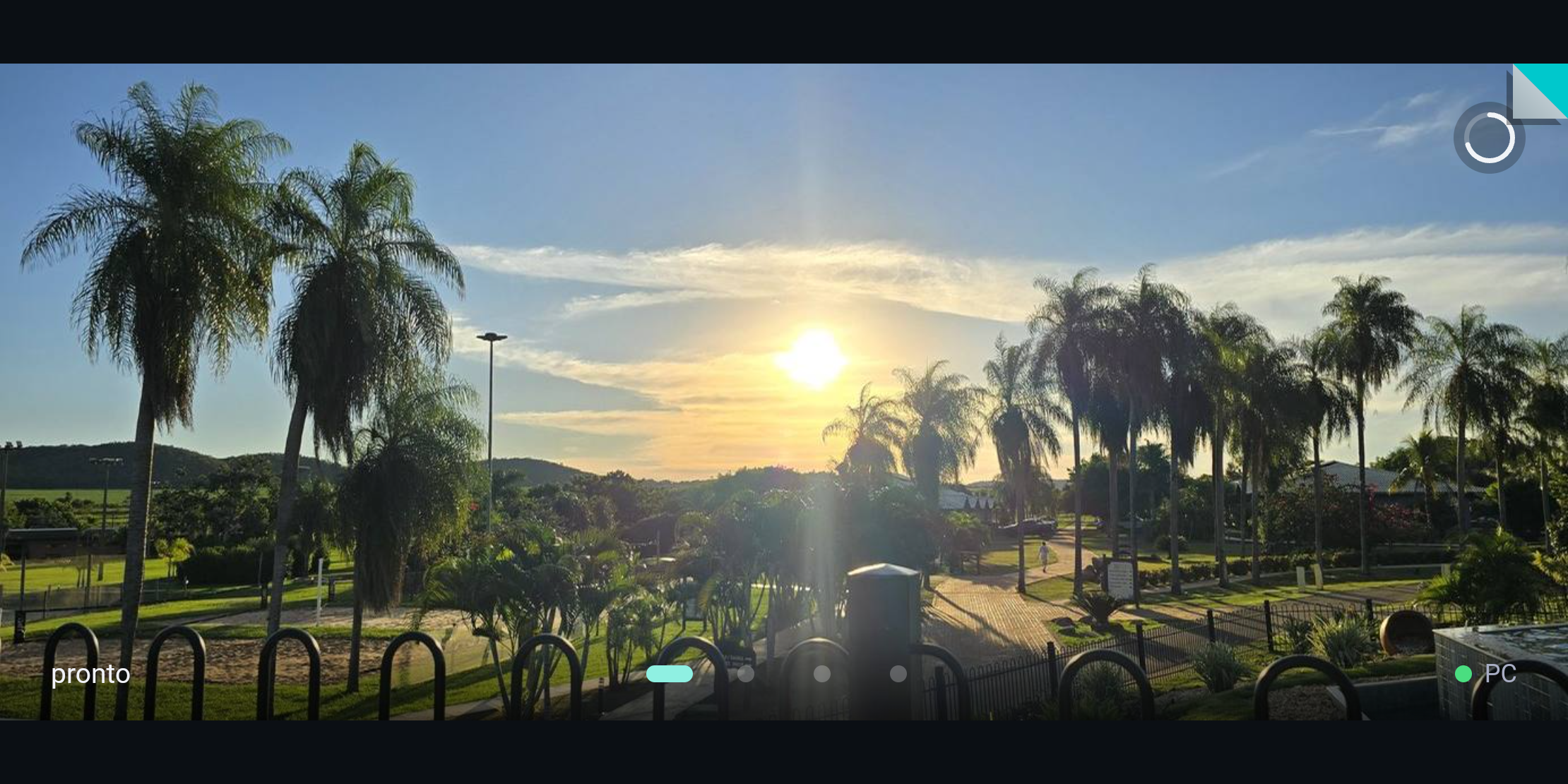
A full-screen photo panel, with the clock over the image if you want.
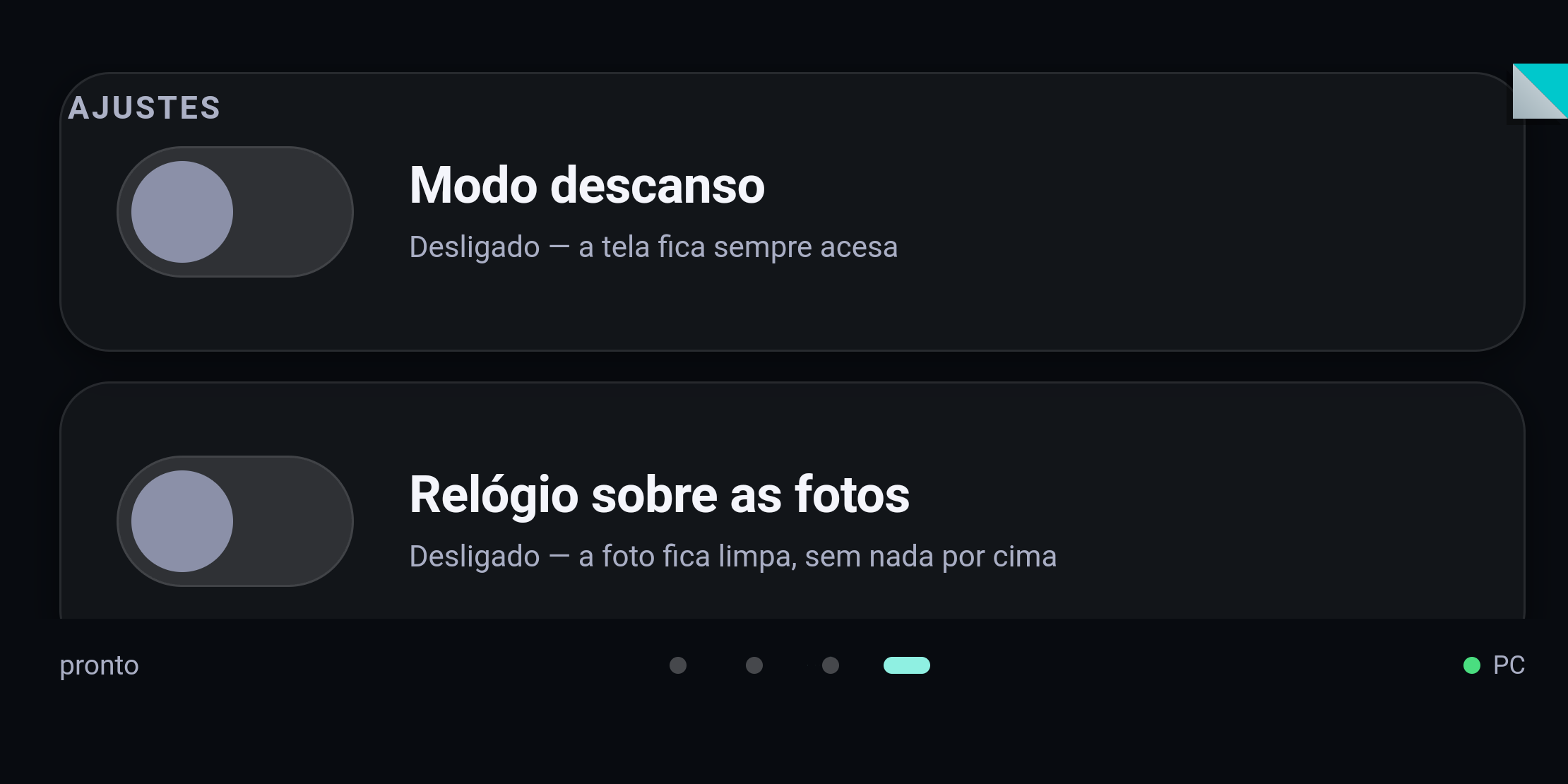
Keep the screen off or dimmed when you do not need it.
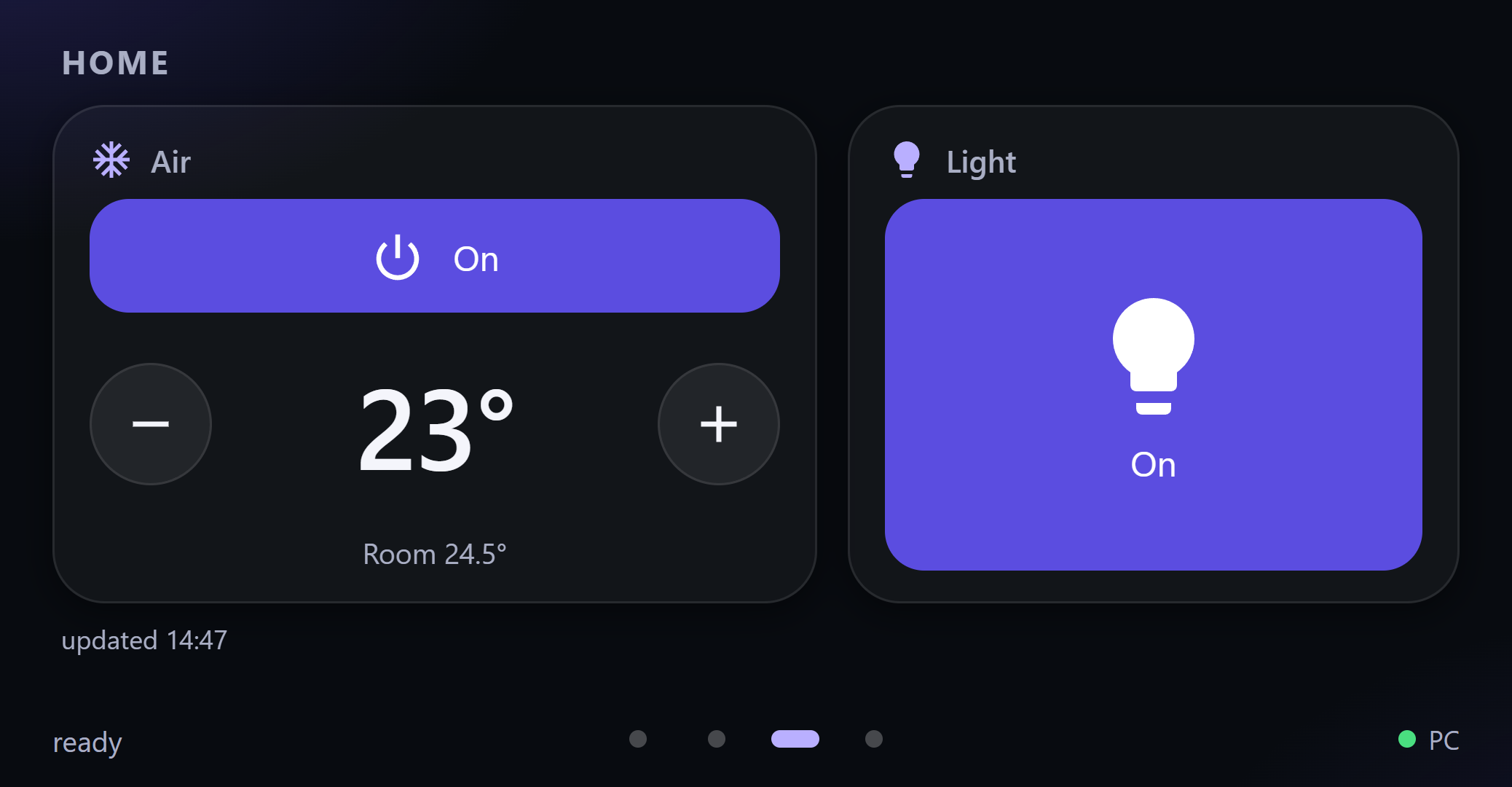
Air conditioner and a room's light through Home Assistant; off by default.
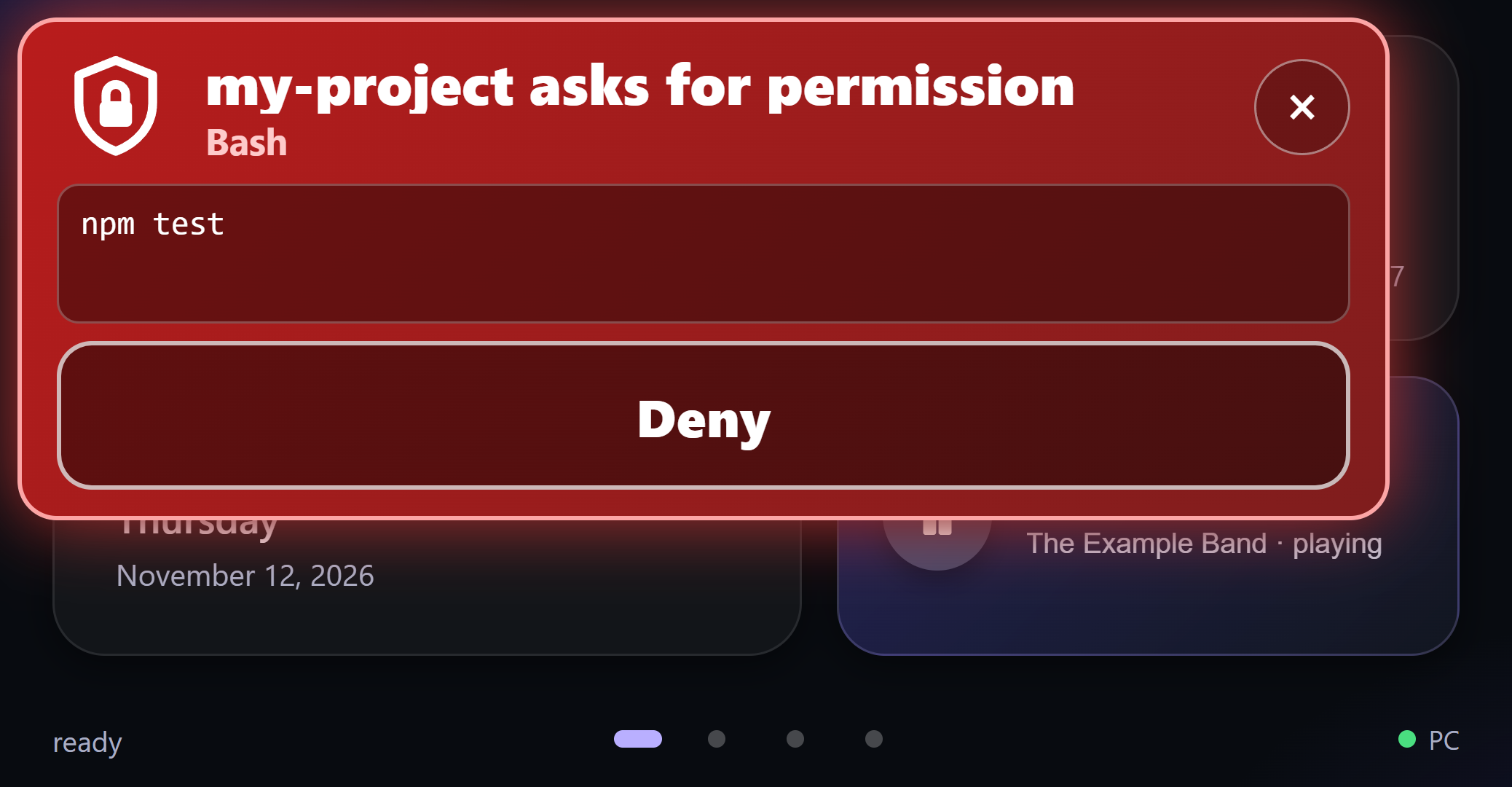
A banner on the screen when a Claude Code session waits for permission. Denying is one tap.
Calendar and home automation are possibilities that depend on integrations you connect yourself. They are not native features of the app. The Companion already includes a ready-made home page.
These are suggestions, not a required model or a fixed catalog. Each person asks their own agent for the interfaces they need.
How it works
The Companion is the bridge to the computer: it receives the taps and runs the configured actions on the PC. MCP Display does not mirror your computer screen.
Install the app on your Android phone and, if you want the PC shortcuts, the Companion on the computer.
Connect the agent to MCP Display over the local network. Confirm the pairing on your phone.
Describe to the agent the screen you want to see on your phone.
Use the screen on your phone and ask for adjustments when you need them.
Phone
Android 7.0 or later.
System browser
Android System WebView 101 or later.
Agent and network
A compatible MCP agent and a local network between the agent and the phone.
Windows
Full Companion support.
macOS and Linux
Companion with limitations.
Free with ads
The app is free and shows ads. A one-time purchase removes the ads. Prices and offers are the ones shown on Google Play.
You are in control
Pairing requires your authorization on the phone.
You can revoke a connected agent whenever you want.
Each connection is authorized by the person, not by the website.
Frequently asked questions
No. You can reuse a compatible old device or use your everyday phone as a companion display.
No. You connect a compatible MCP agent that you already use. That agent creates and adjusts the interfaces.
No. It shows its own interfaces, created by the agent or provided by compatible MCP services.
Android 7.0 or later, an up-to-date WebView (101 or higher), a compatible MCP agent and a local network connection between the agent and the phone. Some clients restrict local HTTP; check the agent’s instructions.
In the ready-made example, the Companion receives the taps and runs the configured actions on the computer. It is installed separately, with your authorization.
To create or change the screen, you use the agent. The example panel can keep working without the conversation open, as long as the Companion is installed and running on the PC.
For actions and data provided by the Companion, yes. Direct integrations with other MCP servers have their own requirements and do not necessarily depend on this PC.
Communication between the agent and the panel uses the local network. Weather, external services, ads and purchases may need internet. We do not promise full offline operation.
Yes. The app works like a normal app. Using it as the home screen of a dedicated device is optional.
Yes. The example is a starting point; the agent can create other layouts and content within the available integrations and permissions.
The current version is for Android. We do not announce a date or promise an iOS version.
The app is free with ads and offers a one-time purchase to remove them. The Companion is free and open.
Companion
The app is free with ads. The Companion is free and open source (MIT).
The Companion is a separate program from the Android app. On Windows it has full support; on macOS and Linux, with limitations. Media, volume and keys work only on Windows; on macOS and Linux the service runs without these features. Installing it as a system service depends on your authorization: the site does not install anything by itself.
Home page with Home Assistant: one air conditioner and one light in a room. The phone talks directly to Home Assistant, without going through the computer. It is off by default.
Claude Code alert on the screen: a banner when a session waits for permission. Denying is one tap. Approving from the panel is off by default. It installs as a Claude Code plugin, with two commands.
Panel in English or Portuguese. English is the default.
Standing panel: with the phone held upright, the screen reorganizes into a column.
A button that holds a key combination until the next tap. Windows only.
Download the app, connect your agent and ask for the first screen. See the full flow in the example project.